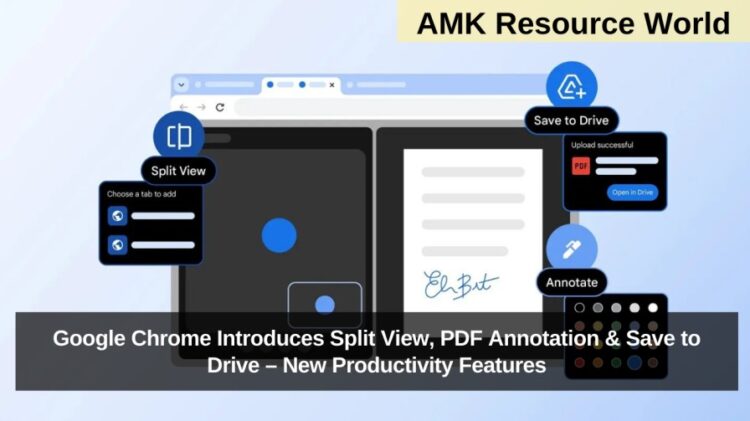
Google has announced a new set of productivity-focused updates for the Google Chrome browser, aimed at helping both everyday users and enterprise professionals manage tasks more efficiently. The latest Chrome update introduces Split View for tab organization, enhanced PDF annotation capabilities, and a new Save to Google Drive feature. These additions are designed to streamline workflows, improve multitasking, and reduce dependency on third-party tools.
Google confirmed in a blog post that the features are rolling out in the latest version of Chrome for desktop platforms. As part of a phased rollout, availability may vary by user and region.
Split View: Side-by-Side Tabs in a Single Window
The highlight of the update is Split View, a tab organization feature that allows users to view two tabs side by side within a single Chrome window. Instead of manually resizing browser windows, users can simply:
- Right-click on a tab
- Select the Split View option
- Pair it with another open tab
Chrome will automatically arrange both tabs evenly across the screen. This makes it easier to:
- Compare documents
- Reference notes while drafting
- Work across multiple web apps
- Conduct research more efficiently
Split View has reportedly been in testing for the past few months and is now officially available to users in the latest Chrome desktop release.
Built-in PDF Annotation Tool
Google has also upgraded Chrome’s native PDF viewer with annotation capabilities. Users can now:
- Highlight text
- Add comments
- Draw or underline sections
- Make basic markups
When opening a PDF file in Chrome, an annotation toolbar will appear automatically, allowing editing without downloading the file or using separate software. This enhancement simplifies document review processes for students, professionals, and enterprises handling contracts or reports.
Save to Google Drive Feature
Another notable addition is the Save to Google Drive functionality. With this feature, users can directly store files and PDFs to their linked Google Drive account from within Chrome.
Instead of downloading files locally and re-uploading them, users can:

- Save content directly to Drive
- Access saved files across devices
- Locate them in a dedicated “Save from Chrome” folder
This update supports cloud-based workflows, reduces local storage dependency, and improves productivity for users working across multiple devices.
Quick Feature Comparison Table
| Feature | Functionality |
| Split View | View two tabs side by side within one Chrome window |
| PDF Annotation | Highlight, comment, draw, and mark PDFs directly in Chrome |
| Save to Drive | Save files directly to Google Drive without downloading |
Why These Chrome Updates Matter
These enhancements reflect Google’s strategy to transform Chrome into a comprehensive productivity platform, reducing the need for additional browser extensions or third-party tools. The updates are especially beneficial for:
- Students working on research papers
- Professionals managing documents
- Enterprise users handling multi-tab workflows
- Remote workers relying on cloud storage
With tighter integration between Chrome and Google Drive, the browser continues to strengthen its ecosystem advantage.
Availability and Rollout
Google has stated that these features are part of a phased rollout and will be available in the latest Chrome version on desktop platforms. Users should ensure their browser is updated to access the new tools.
Frequently Asked Questions (FAQs)
| What is the new Split View feature in Chrome? |
| Split View allows users to view two tabs side by side within a single Chrome window. |
| How do I activate Split View in Chrome? |
| Right-click a tab, select Split View, and pair it with another open tab. |
| Can I annotate PDFs directly in Chrome now? |
| Yes, Chrome now includes built-in tools to highlight, comment, and mark up PDFs. |
| Do I need to download PDFs to annotate them? |
| No, annotations can be done directly within the browser. |
| What is the Save to Google Drive feature? |
| It lets users save files directly to their Google Drive account from Chrome. |
| Where are saved files stored in Drive? |
| Files are placed in a dedicated “Save from Chrome” folder. |
| Are these features available on mobile Chrome? |
| Currently, Google has confirmed rollout for desktop platforms. |
| How can I get these new Chrome features? |
| Update to the latest version of Google Chrome on your desktop device. |
Google’s latest Chrome update introduces powerful tools such as Split View, PDF annotation, and Save to Drive, making the browser more versatile and productivity-focused. These features are designed to help users multitask efficiently, manage documents seamlessly, and integrate better with cloud workflows. To access the updates, ensure your Chrome browser is running the latest version. For official announcements and support details, visit the Google Chrome blog or support page, and bookmark this page for further tech updates.